
Drawing Pad Lite - Artbook
CardsArt & Design
4.52.61K Reviews
- Version
- 2.6.1
- Installs
- 10.00M
- Age Rating
- Everyone
Screenshots

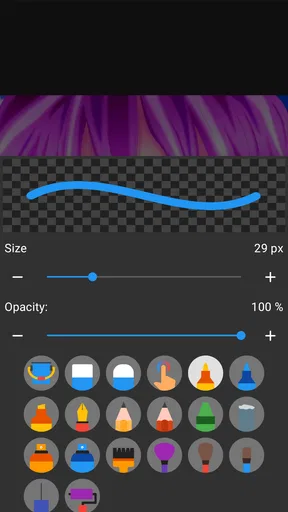
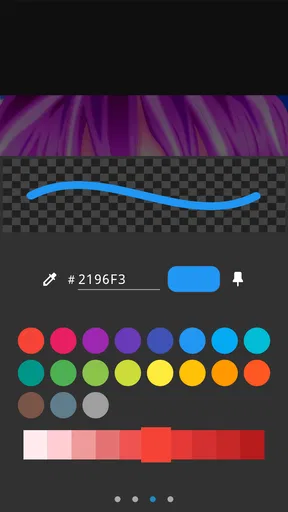
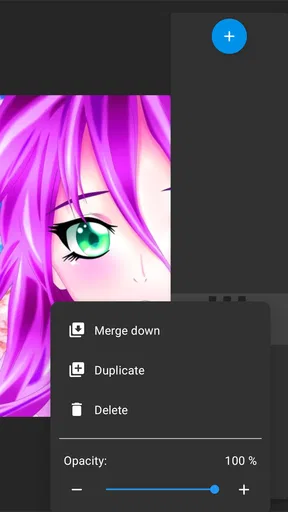
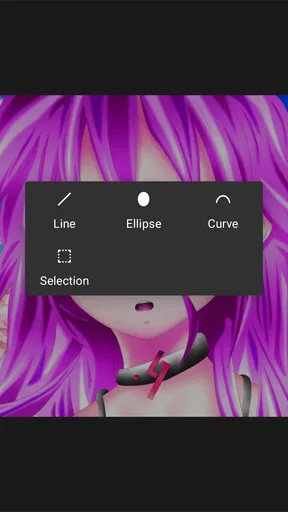
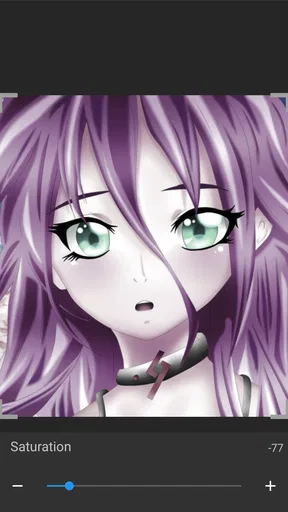
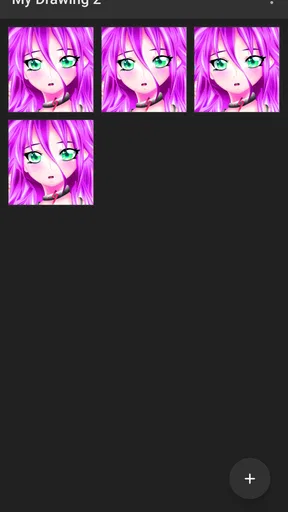
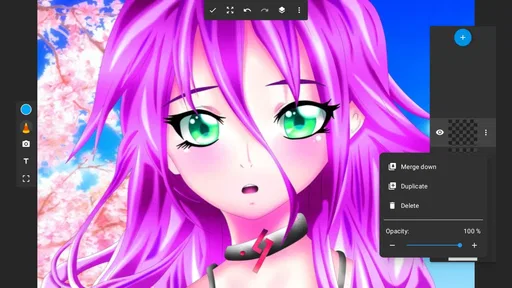
Our Review of Drawing Pad Lite - Artbook
 Analysis by Appyee
I tried to approach Drawing Pad Lite - Artbook as a first-time user rather than someone arriving with a finished illustration in mind. That makes a difference: this is an art and design app for getting a sketch started, trying familiar drawing tools, and seeing where a small idea leads. I would recommend it most to people who want a relaxed place to doodle or practise, not to someone looking for a full professional studio on a phone.
The app is free to download, and its straightforward presentation helps keep the first session from feeling like a technical project. The developer is Cards, and the app is rated for Everyone, which fits its approachable, casual feel. In the store, it has a 4.6 average from around 80,000 ratings and more than 10 million installs. Those figures suggest broad interest, but the useful question is whether its drawing approach suits the way you want to work.
What to expect from a sketching app
Drawing Pad Lite - Artbook is best understood as a digital drawing pad rather than a course or a social art community. You open it to make something, not to follow a structured lesson. That makes it easy to pick up for a few minutes, whether you want to test a color combination, fill a spare moment with doodles, or start a rough idea before deciding what to do with it.
That modest purpose is also a useful way to judge it. I wouldn’t choose it as my main workspace for a complex illustration that needs a carefully planned production process. I would choose it when I want a light, direct route from “I have an idea” to a visible sketch. The distinction helps set expectations before you spend time learning the controls.
Getting Started with Drawing Pad Lite
First things first, let’s talk about the setup. Downloading Drawing Pad Lite - Artbook was a breeze. A quick trip to the App Store or Google Play, and I was all set to unleash my inner Picasso. The app is free, which is always a plus, but there are some in-app purchases if you want to access extra features.
Once you open the app, you're greeted with a clean and intuitive interface. It’s straightforward enough that even someone with zero tech skills can navigate it easily. You’ve got a variety of tools right at the bottom, and trust me, you'll want to try them all.
Make the first session small and specific
For a first meaningful result, I’d avoid trying to draw a polished portrait straight away. Pick one simple object—a mug on the table, a houseplant, or a quick symbol for a note—and focus on its outline and one or two colors. This gives you a chance to learn how the drawing controls respond without turning the session into a test of your artistic skill.
A practical routine is to make a few loose marks, switch tools, and compare the feel of the strokes before committing to the main sketch. If you like the result, keep going; if not, treat the early marks as experiments. The point is to discover which tool feels natural in your hand, not to find a perfect setting before you begin.
Exploring the Creative Tools
The app offers a delightful range of drawing tools. You’ve got your basics like pencils and brushes, but there are also markers, crayons, and even airbrushes. Each tool has its own set of adjustments, so you can tweak the size, opacity, and color to your heart’s content. I personally loved the watercolor brush—it’s perfect for creating those soft, dreamy effects.
One feature that really stands out is the layer function. If you’re used to working with digital art software, you’ll know how crucial layers are. They allow you to build your artwork in stages, making it easy to edit without messing up your masterpiece. It’s a handy feature that adds a professional touch to your creations.
Use layers to keep experiments reversible
Layers are especially helpful when you are unsure about a background, color, or detail. I’d keep the main sketch separate from any later decoration, so a change to the finishing marks does not force you to redraw the outline. For a simple poster-like doodle, for example, the drawing can stay on one layer while a loose color wash or pattern sits elsewhere.
This approach is less about making complicated art and more about reducing hesitation. When experiments are separated, it is easier to try a bolder color or texture and decide whether it helps. If you tend to erase too much because you are worried about spoiling a drawing, layers can make the process feel more forgiving.
Customization and Personalization
Customization is key in Drawing Pad Lite - Artbook. You can choose from a wide array of pre-set colors or mix your own unique shades. The app also comes with a selection of backgrounds and textures, which can add depth to your drawings. I found myself experimenting with different textures to give my art that extra pop.
For those who love a bit of guidance, there are templates and stencils available. These are great for practicing or if you’re just looking to relax without thinking too much about what to draw. I had a blast using the stencils for creating intricate patterns and designs.
Choose a starting point that matches your mood
Templates and stencils are useful when a blank canvas feels like too much pressure, but I would treat them as prompts rather than shortcuts to a finished piece. One low-effort exercise is to choose a stencil, trace or adapt its shape, then add a few marks of your own using a different tool. That gives you structure while still leaving room to practise decisions about color and detail.
Textures can also change the character of a sketch quickly. I’d test them on a small area before applying them broadly, especially if the drawing depends on clear outlines. A strong surface effect can add atmosphere, but it can also compete with the subject. For a clean icon or a small design meant to stay readable, restraint is often more useful than adding every decorative option.
Where it fits in an everyday routine
One realistic use is a short break between tasks: you notice an interesting shape on your walk, open the app later, and make a loose study of it without needing to set up a desk or gather art supplies. Another is planning a handmade card or a simple decoration. You can sketch the layout, test a few color ideas, and decide what to redraw on paper afterward.
It can also suit parents or beginners who want a low-pressure activity to explore drawing together. The tools are varied enough to make trying different marks interesting, while the templates can help when nobody knows what to draw next. I would still keep expectations focused on experimenting and having fun rather than treating the app as a substitute for a guided art lesson.
Common points of confusion
New users may assume that a tool with the same name as a traditional medium will behave exactly like the real thing. I find it more useful to think of the pencil, crayon, marker, and watercolor options as different digital effects to test, rather than exact physical materials. A few trial strokes on a sketch are a better guide than expecting a perfect match to paper.
Another easy mistake is to spend too long adjusting size, opacity, and color before drawing anything. Start with a simple mark, notice what feels too heavy or too faint, and make one adjustment at a time. That makes it easier to understand what changed. If the controls feel unfamiliar, begin with a basic pencil or brush, then explore the more distinctive effects once you have a sketch to experiment on.
Sharing, saving, and keeping a useful record
What’s art if you can’t share it with the world? The app makes it super easy to show off your creations. You can save your artwork to your device or share it directly to social media platforms. I found myself clicking the share button more than once, eager to show my friends the digital magic I’d conjured up.
Plus, for those who like to keep their creations organized, the app offers a gallery feature. You can store and categorize your artwork for easy access, which is perfect for tracking your progress over time.
I’d use the gallery as a simple visual diary, especially when practising the same subject more than once. Saving a rough first attempt alongside a later version makes changes easier to notice than relying on memory. For sharing, it is worth looking at the finished image before posting: a quick check for stray marks or unfinished areas can make a casual sketch feel more deliberate.
How it compares with other drawing choices
Compared with a basic phone notes app, this gives you a more art-focused set of tools, including varied drawing effects, textures, stencils, and layers. That extra range is useful when a quick scribble turns into a small design. Compared with a more demanding digital illustration program, though, its appeal is the accessible, casual experience rather than a deep production workflow.
If your priority is structured instruction, a drawing course or tutorial-focused app would be a better starting point. If you need a highly controlled workflow for detailed client work, a more specialized art program may suit you better. I see this app in the middle: more playful and flexible than jotting a note, but best approached as a sketchbook rather than a complete professional pipeline.
What to consider before paying
The app is free, with optional in-app purchases ranging from $0.99 to $99.99 per item. I would use the free experience first and identify a specific limitation before considering a purchase. If you only want to make occasional sketches, the free option may be enough; if you find yourself repeatedly wanting an extra capability, then it makes sense to look closely at what an offered purchase actually adds.
That distinction matters because a long tool list can make it tempting to assume every option is essential. For a beginner, consistency usually matters more than unlocking everything: returning to a familiar brush and finishing small drawings will teach more than collecting tools without using them. The app’s current version is 2.5.8.3, and it requires Android 6.0 or later on Android devices.
Who will enjoy it, and who may want another tool
I’d recommend it to first-time digital artists, casual doodlers, and anyone who wants a colorful place to test visual ideas without committing to a complicated setup. It can be a good fit for quick personal projects, pattern experiments, simple concept sketches, and relaxed practice. The Everyone age rating also makes its general-audience positioning clear, although an adult should still choose an activity that fits the child using it.
I would steer away from it if your main goal is a formal drawing curriculum, precise professional production, or a workflow built around advanced project management. The same applies if you dislike experimenting with touch controls and would rather work with traditional materials. A phone or tablet drawing surface can feel less natural than paper, and a stylus may help, but I would not assume you need to buy one before trying a few simple sketches with the device you already have.
Final Thoughts
So, is Drawing Pad Lite - Artbook worth your time? Absolutely! Whether you’re a beginner or a pro, this app provides a versatile platform to express your creativity. It’s user-friendly, packed with features, and offers endless possibilities for artistic exploration.
Of course, like any app, it has its limitations. Some advanced features are locked behind a paywall, but the free version is generous enough for casual users. If you’re serious about digital art, you might consider unlocking the full suite of tools. But for the everyday artist, the free version is more than sufficient.
In the end, Drawing Pad Lite - Artbook is a fantastic tool for anyone looking to dip their toes into the world of digital art. So grab your stylus, fire up the app, and let your imagination run wild!
Privacy and Permissions
See what permissions an app requests and how it handles your data.
- Photos/Media/Files
- read the contents of your USB storage, modify or delete the contents of your USB storage
- Storage
- read the contents of your USB storage, modify or delete the contents of your USB storage
- Wi-Fi connection information
- view Wi-Fi connections
- Other
- view network connections, full network access, control vibration, prevent device from sleeping, Google Play license check
Verdict
Strengths of Drawing Pad Lite - Artbook
- User-friendly interface for beginners.
- Wide variety of brushes and tools.
- Layers feature enhances creativity.
- Supports high-resolution exports.
- Frequent updates with new features.
Limitations of Drawing Pad Lite - Artbook
- Limited features in the free version.
- Occasional lag on older devices.
- Ads can be intrusive at times.
- No offline tutorials available.
- Limited color palette options.
Other Releases by Cards
View All
Cards - Mobile Wallet
Productivity4.6

Phone Mirror app - True Mirror
Beauty4.6

Ghost Detector Pro Radar
Entertainment4.6

Blood Sugar Diary for Diabetes
Medical4.5
Similar Picks in This Category
View All
Canva: AI Photo & Video Editor
Canva4.8

PENUP – Drawing-sharing SNS
Samsung Electronics Co., Ltd.4.5

Crafto
Kutumb App4.6

Sketchbook
Sketchbook4.1

ibis Paint X
ibis inc.4.5

Adobe Express: AI Photo, Video
Adobe4.6
Frequently Asked Questions
What features are available in Drawing Pad Lite - Artbook?
Drawing Pad Lite - Artbook offers a variety of features including multiple brush styles, color palettes, and layers to enhance your digital art experience. It also provides basic editing tools, undo/redo functionality, and the ability to save and export your artwork in various formats.
Is Drawing Pad Lite - Artbook suitable for beginners?
Yes, Drawing Pad Lite - Artbook is designed to be intuitive and user-friendly, making it suitable for beginners. The app includes tutorials and guides to help new users get started with digital drawing and familiarize themselves with the tools available.
Does Drawing Pad Lite - Artbook require an internet connection?
No, Drawing Pad Lite - Artbook works offline once downloaded. This allows users to create and edit their artwork anywhere without needing an internet connection, making it convenient for use on the go.
Are there any in-app purchases in Drawing Pad Lite - Artbook?
Yes, while the basic version of Drawing Pad Lite - Artbook is free, there are optional in-app purchases available. These may include additional brushes, color palettes, and premium features that enhance the drawing experience.
Can I share my artwork directly from Drawing Pad Lite - Artbook?
Absolutely! Drawing Pad Lite - Artbook allows you to share your creations directly through social media platforms or via email. You can also export your drawings in popular formats to share or print them as needed.
